
How to pair Gii Pro / Gii V2.0 with a camera
Step 1
Leave the Bluetooth adapter disconnected, and power off the GPS module.
Step 2
Press the button on the GPS module all the way down and hold it while turning on the power switch.
Step 3
During startup, the indicators flash red, green, and blue in sequence. Keep holding the button until the red indicator stays on, then release it.
The first 15 seconds are reserved for pairing an adapter. Camera Bluetooth pairing begins after those 15 seconds.
The first 15 seconds are reserved for pairing an adapter. Camera Bluetooth pairing begins after those 15 seconds.
Step 4
Switch on the camera and open the setup menu.
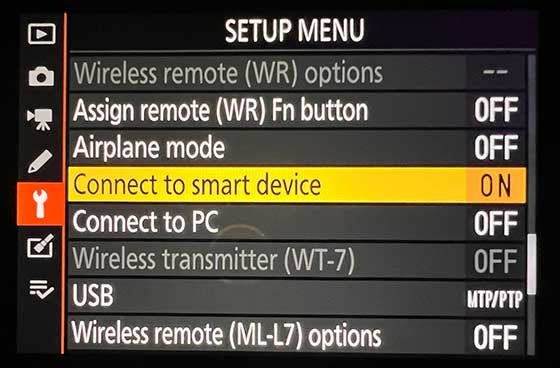
In the camera's setup menu, find "Connect to smart device".(Different camera models may have different menu paths, but the items are generally similar.)
Step 5
Select "Connect to smart device" and open it.
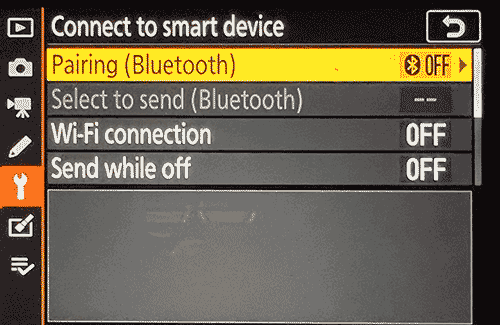
Find "Pairing (Bluetooth)".
Step 6
Open "Pairing (Bluetooth)" and select "Start pairing".
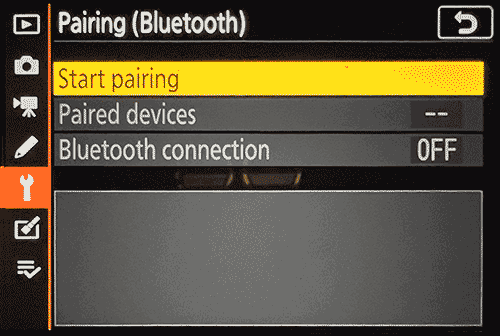
Select "Start pairing".
Step 7
The camera displays an identifier beginning with the camera model or "DDDD". Make a note of it so you can find it on your phone later.
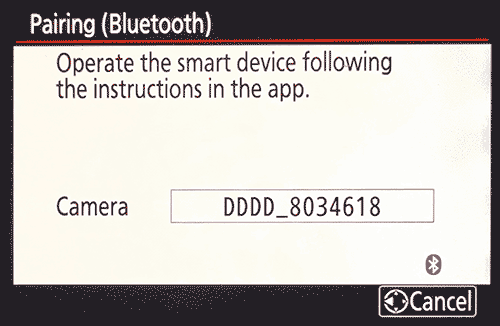
The camera screen displays its Bluetooth name (for example, DDDD_8034618).
Step 8
Use any smartphone and open its Bluetooth pairing settings. The phone is used only to confirm the pairing code; no app installation is required.
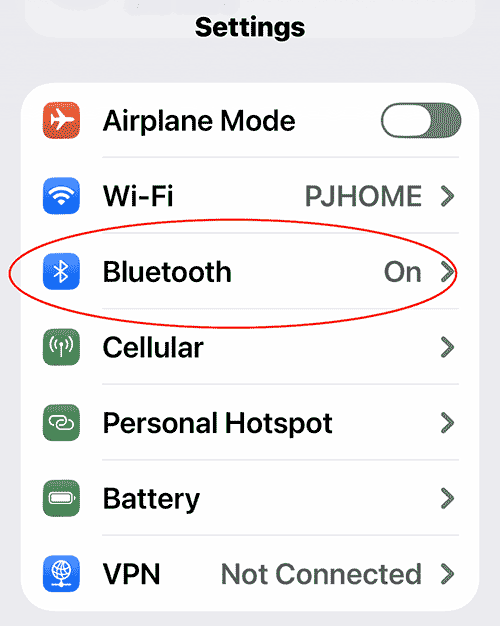
Open Bluetooth settings from the phone's control center.
Step 9
Refresh "Other devices" to find the camera.
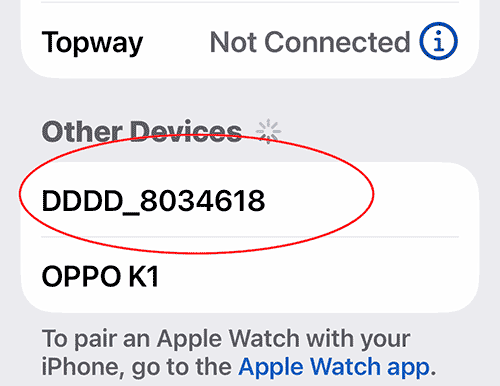
Under "Other devices", find the name that matches the one on the camera screen.
Step 10
Select it to start pairing. A pairing code appears; tap "Pair" to confirm.
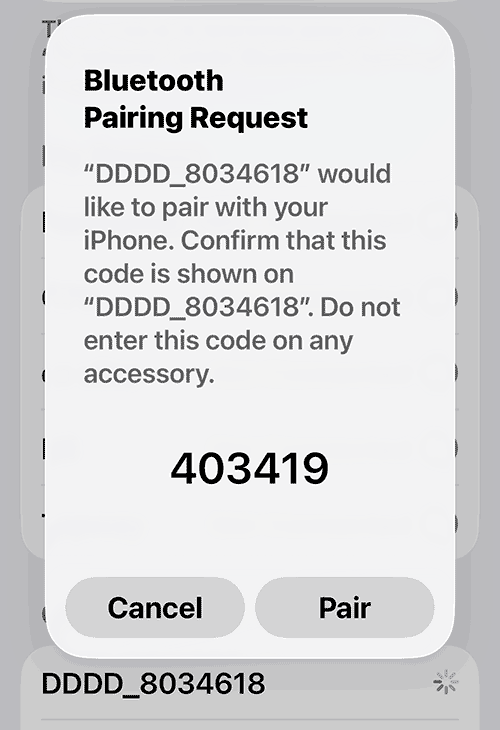
When the pairing code appears on the phone, tap "Pair".
Step 11
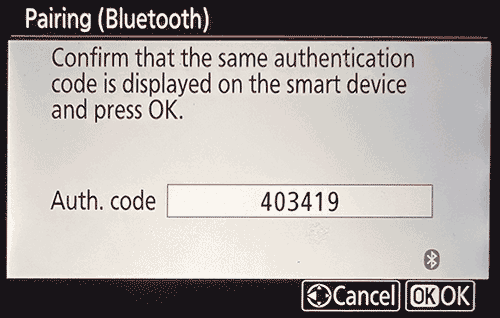
The same code appears on the camera screen. Press the camera's "OK" button to confirm pairing.
Step 12
Pairing is now complete. The phone was used only to confirm the pairing code. You can now remove the camera from the phone's paired-device list, or leave it there. If you leave it, you will need to remove it before pairing another camera next time.
Step 13
After pairing, leave the camera's "Connect to smart device" option set to "ON". Switching on the GPS module then connects it to the camera and updates the camera's location data.
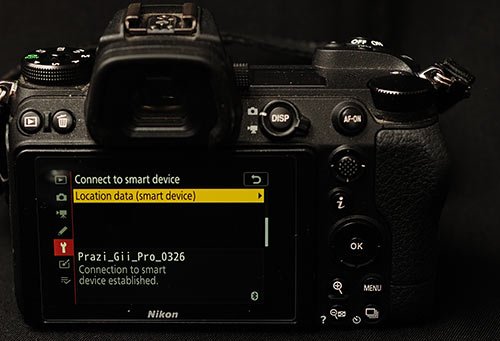
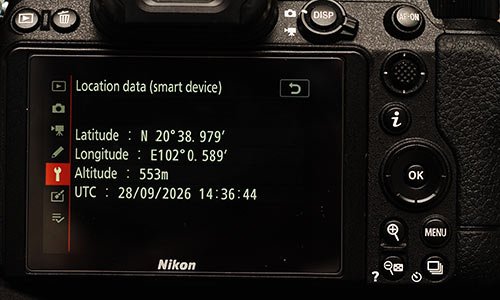
Note: this location-data screen is under the camera's "Connect to smart device" option, not the location-data option at the top level of the setup menu.
After successful pairing, the camera displays "Location data (smart device)".
Note: this location-data screen is under the camera's "Connect to smart device" option, not the location-data option at the top level of the setup menu.